 Muryo Tools
Have you ever struggled to narrow down your choices when picking a domain name?
- Should you go with
.com,.jp, or maybe.ioor.dev? - Which of your candidates — A, B, or C — feels right?
- Should you include a hyphen (
-) or not? - Is it worth trying a domain hack?
The more options stack up, the harder it gets to commit.
And because domain names are hard to change once registered, the stakes feel even higher. A URL change affects your search engine rankings, and once something is printed on business cards or flyers, the cost of switching skyrockets. Since “I’ll change it later” rarely works out, it’s worth choosing something you’re confident in from the start.
Being Able to See It Might Help
One reason domain selection is difficult is that staring at a list of candidates as plain text makes it hard to visualize what they’ll actually look like in use.
- What if your candidate domain appeared in a browser’s address bar?
- What if it showed up in the domain field of an OGP card shared on social media?
Having just one visual preview gives you more information to base your decision on.
That’s why I built Domainscape.
What Is Domainscape?
Domainscape is a tool that lets you enter a domain name and instantly see how it would appear in real-world usage scenarios. It generates mockups for 9 different contexts — including browser address bars, social media, and search results — right away.
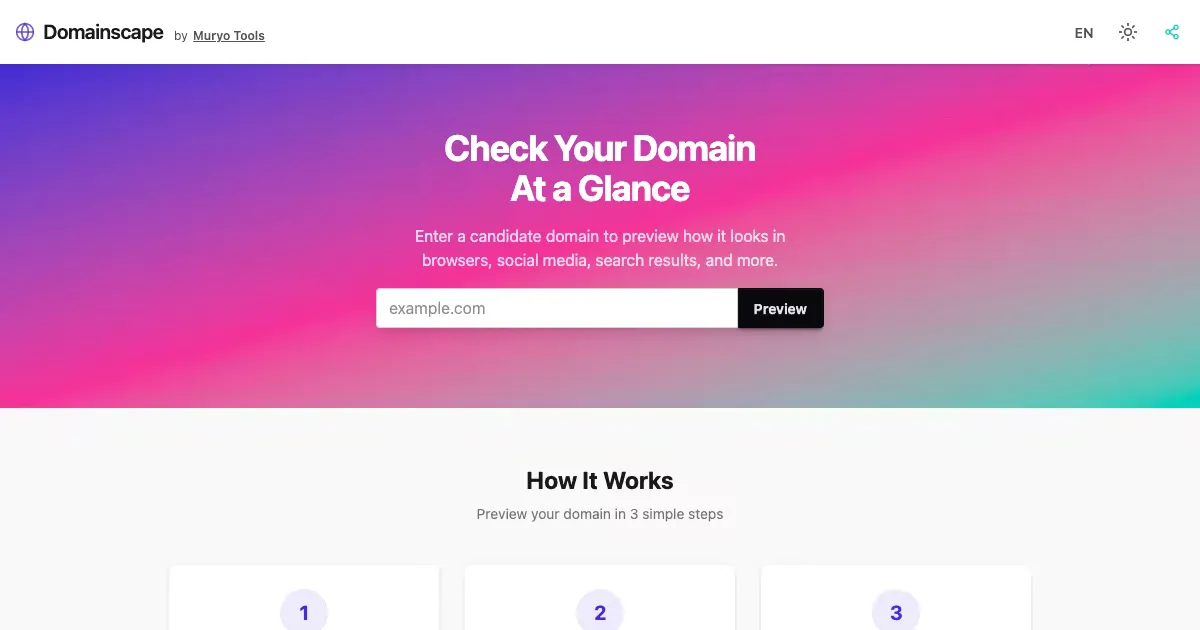
Using it is a three-step process:
- Type the domain you want to check into the input field (e.g.,
example.com) - Click the “Preview” button
- Review how it looks across the various mockups
When you want to compare a different candidate, just retype it — the preview switches instantly.
Check the Look and Feel Across 9 Preview Types
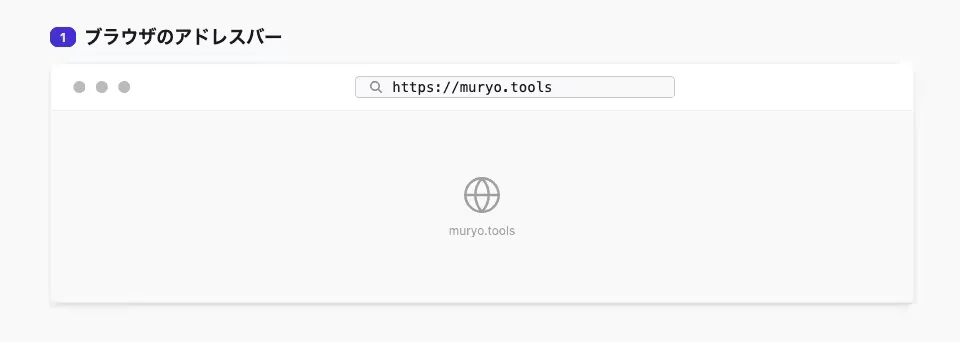
1. Browser Address Bar
A mockup of a URL displayed in a desktop browser’s address bar. See how the domain’s length and letter combination come across as an actual URL.
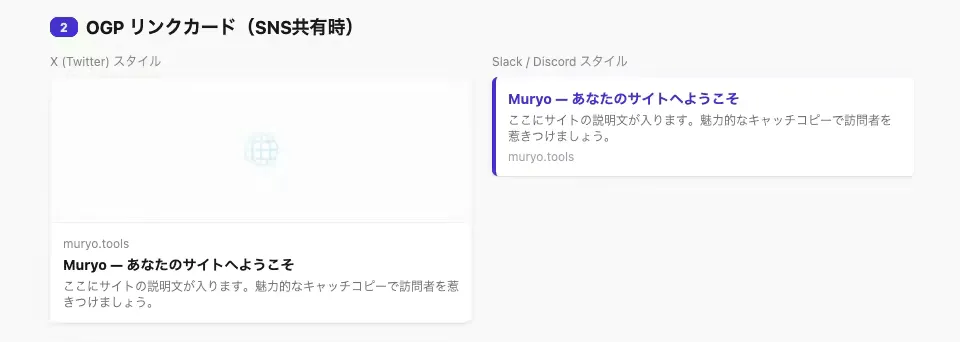
2. OGP Link Card
A preview of the link card that expands when sharing on social media. You can check both the X (Twitter) style and the Slack / Discord style. Domain names are often displayed small in a corner of the card, so shorter and cleaner ones tend to make a better impression.
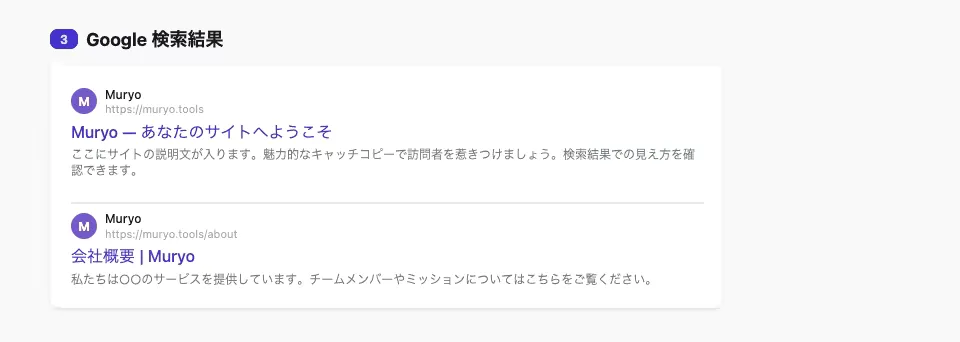
3. Google Search Result
An image of how your site would look on a Google search results page. You can see the site name, URL, title, and snippet all together.
4. Email Signature
A preview of a URL or email address displayed in an email signature.
You can also check how an address like taro@yourdomain.com would look.

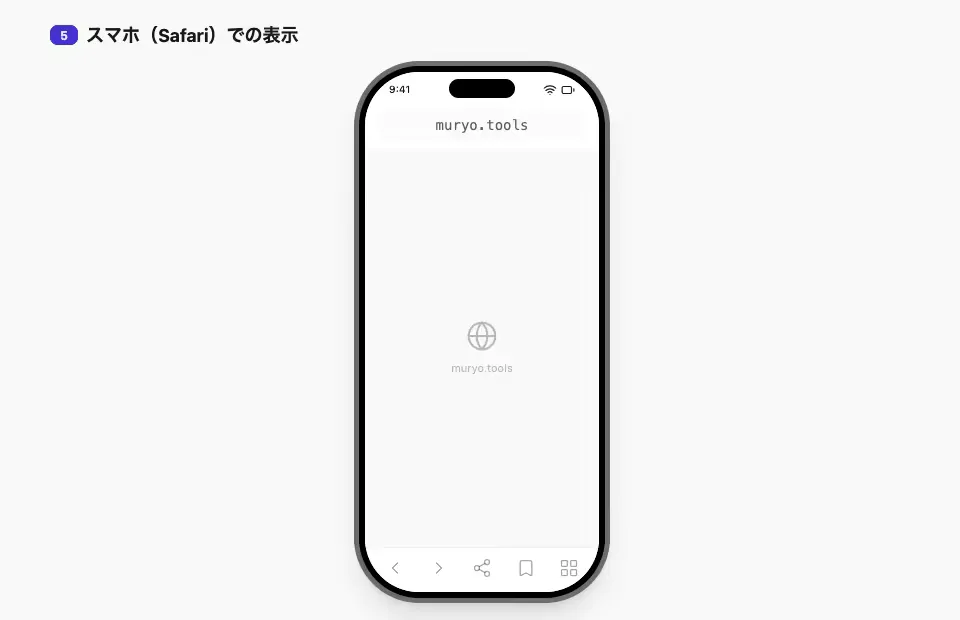
5. Mobile (Safari)
A mockup of iOS Safari’s address bar. Since desktop and mobile feel quite different, it’s reassuring to check both.
6. Bookmark Bar
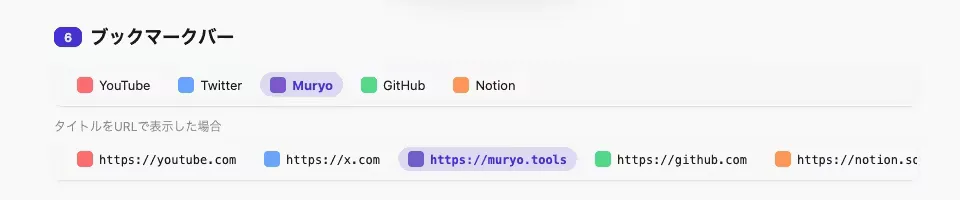
How your domain would look saved in a browser’s bookmark bar. It’s displayed alongside other sites like YouTube and GitHub, making it easy to get a sense of relative length.
7. Slack Message Link
A preview of how a link appears when expanded in a Slack chat. Get a feel for how the URL will look when you share it with your team.

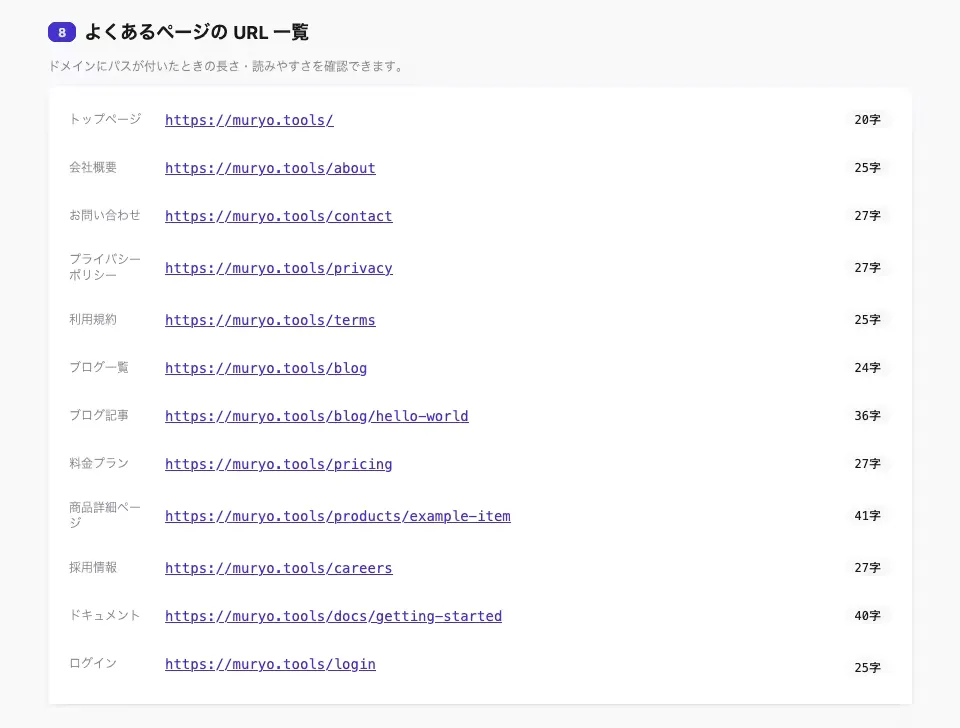
8. Common Page URL List
A list of typical page paths — homepage, about, blog post, login page, and more — appended to the domain, along with character counts for each. Personally, this is my favorite.
Even if you think you’ve packed everything you need into the domain, adding paths can make URLs feel longer than expected. You can spot that gap before registering.
9. Business Card / Flyer Print Preview
An image of how the URL would look printed on a business card or flyer, displayed in a layout alongside a QR code.

Share with Your Team via a Shareable URL
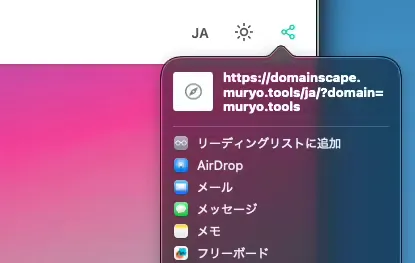
When you open a preview by entering a domain, the browser URL automatically gets a query parameter in the format ?domain=yourdomain.com.
Copy that URL and send it to teammates or decision-makers, and they can see the exact same preview. A “what do you think of this domain?” conversation can be resolved with a single link.
On supported devices like smartphones, you can also use the native share menu from the share button.
Closing
Domainscape is a niche tool, but I built it hoping it could help those who are stuck trying to pick a domain. If you have a few candidates in mind, give it a try before registering.